Affiliate Disclosure: As an Amazon Associate we earn from qualifying purchases. Some links may earn us a commission at no cost to you.

Best 1440p Computer Monitor 2026: Top Picks for Work
Most people will spend well on a tower and then stare at a cheap panel all day. The monitor is the part you look at for eight hours straight, and a 27-inch 1440p screen is the comfortable sweet spot for work: sharp enough to lay out spreadsheets and code without the scaling headaches that bite 4K, and a real step up from a cramped 1080p panel. The picks below are chosen for the productivity desk, where connectivity and color matter more than frame rate. Light gaming after hours is a welcome bonus on every one of them.
Our top pick: Dell UltraSharp U2724DE
The Dell UltraSharp U2724DE turns the monitor into the whole dock: one Thunderbolt 4 cable charges the laptop, drives the panel, hands off Ethernet, and runs a built-in KVM so a laptop and a desktop can share one screen. If you are still matching a monitor to the rest of your build, start there first.

Quick picks
Pick | Monitor | Best for | Where to buy |
|---|---|---|---|
Best Overall | Productivity dock + KVM | ||
Best Value | Color-accurate USB-C dock | ||
Best Premium | Productivity + 144 Hz gaming | ||
Best Budget | Color accuracy, no USB-C | ||
Editor's Pick | Desk-clamp Ergo arm |
Best Overall
- Monitor
- Best for
Productivity dock + KVM
- Where to buy
Best Value
- Monitor
- Best for
Color-accurate USB-C dock
- Where to buy
Best Premium
- Monitor
- Best for
Productivity + 144 Hz gaming
- Where to buy
Best Budget
- Monitor
- Best for
Color accuracy, no USB-C
- Where to buy
Editor's Pick
- Monitor
- Best for
Desk-clamp Ergo arm
- Where to buy
Specs at a glance
Monitor | Panel | Refresh | Connectivity | Standout |
|---|---|---|---|---|
27" IPS Black | 120 Hz | Thunderbolt 4, 90W | 2.5 GbE + KVM | |
27" IPS | 75 Hz | USB-C 65W | DP daisy-chain | |
27" IPS | 144 Hz | USB-C 90W | FreeSync + HDR400 | |
27" IPS | 75 Hz | DP / HDMI / DVI | No USB-C | |
27" IPS | 75 Hz | USB-C | Ergo C-clamp arm |
- Panel
27" IPS Black
- Refresh
120 Hz
- Connectivity
Thunderbolt 4, 90W
- Standout
2.5 GbE + KVM
- Panel
27" IPS
- Refresh
75 Hz
- Connectivity
USB-C 65W
- Standout
DP daisy-chain
- Panel
27" IPS
- Refresh
144 Hz
- Connectivity
USB-C 90W
- Standout
FreeSync + HDR400
- Panel
27" IPS
- Refresh
75 Hz
- Connectivity
DP / HDMI / DVI
- Standout
No USB-C
- Panel
27" IPS
- Refresh
75 Hz
- Connectivity
USB-C
- Standout
Ergo C-clamp arm
How we picked
The display is the part of the build you stare at for the entire workday, so it earns a spend-up the way a motherboard never does. A real QHD panel does more for daily happiness than almost any tower upgrade, and it is the single most common place buyers cut a corner they regret.
We weighted three things, in order. First, connectivity that removes real desk friction: USB-C with enough power delivery to charge the laptop, a usable downstream hub, and ideally a KVM for the two-machine desk. Second, panel quality measured by factory color accuracy and uniformity, not peak marketing brightness. A Calman-verified panel that lands under Delta E 2 out of the box covers the casual photo or design work most people do.
Third, ergonomics that survive a real desk: height, tilt, pivot, and arm options for anyone running more than one screen. A panel you cannot raise to eye level is a neck problem waiting to happen.
We anchored on 1440p over 4K on purpose. At 27 inches, native QHD avoids the fractional-scaling artifacts that show up in code editors and terminals, and it asks far less of the GPU for the light-gaming side. For a work-first buyer, that is the better default than chasing pixel density you then have to scale away.
Best Overall: Dell UltraSharp U2724DE
Specs
Panel | 27" IPS Black, 2560x1440 (QHD) |
Refresh | 120 Hz |
Color | 100% sRGB, 98% DCI-P3, Delta E < 2 |
Hub | Thunderbolt 4, 90W power delivery |
Networking | 2.5 GbE RJ45, built-in KVM |
Ergonomics | Height, tilt, swivel, pivot |
Panel
27" IPS Black, 2560x1440 (QHD)
Refresh
120 Hz
Color
100% sRGB, 98% DCI-P3, Delta E < 2
Hub
Thunderbolt 4, 90W power delivery
Networking
2.5 GbE RJ45, built-in KVM
Ergonomics
Height, tilt, swivel, pivot
What it does well
IPS Black is the panel's quiet advantage. It pushes contrast well past a normal IPS screen, so blacks in a dark editor theme or a movie at lunch look closer to right instead of washed-out gray. Factory calibration lands under Delta E 2, which covers anyone editing photos casually without owning a colorimeter.
The connectivity is the real reason to buy it. A single Thunderbolt 4 cable charges the laptop at up to 90 watts, carries the video, and turns the monitor into a dock with 2.5-gigabit Ethernet and a full USB hub. The bag loses a brick. The built-in KVM then lets a work laptop and a personal desktop share the same screen, keyboard, and mouse, switched from the monitor itself.
The 120 Hz refresh is a bonus most productivity panels skip. Scrolling is smoother, and the after-hours game session runs better than the 75 Hz field below.
What you give up
It is the priciest pick here, and most of that premium is the Thunderbolt 4 hub and the 2.5-gigabit Ethernet. If your desk is a single desktop with no laptop to dock and no second machine to switch to, a big slice of what you are paying for sits idle. A plain DisplayPort connection to a tower uses none of the dock.
IPS Black also trades a little peak brightness for its contrast win, so it is not the panel for a bright sunroom with windows behind you.
Who it's for
The hybrid worker who docks a laptop at the same desk every morning, especially anyone juggling a work laptop and a personal desktop on one screen. The KVM and the single-cable dock are the entire reason this one costs more, so buy it for those features or buy something cheaper.
Best Value: ASUS ProArt PA278CV

Specs
Panel | 27" IPS, 2560x1440 (QHD) |
Refresh | 75 Hz |
Color | 100% sRGB / Rec. 709, Delta E < 2, Calman Verified |
USB-C | 65W power delivery |
Extras | DisplayPort daisy-chain, USB hub |
Ergonomics | Height, tilt, swivel, pivot |
Panel
27" IPS, 2560x1440 (QHD)
Refresh
75 Hz
Color
100% sRGB / Rec. 709, Delta E < 2, Calman Verified
USB-C
65W power delivery
Extras
DisplayPort daisy-chain, USB hub
Ergonomics
Height, tilt, swivel, pivot
What it does well
The PA278CV delivers most of the Dell's productivity value at a much lower entry point. The panel is Calman verified out of the box at 100 percent sRGB and Rec. 709 with a Delta E under 2, so it lands accurate without a calibration step, which is the part most buyers skip anyway.
The 65-watt USB-C handles a single-cable laptop dock for any ultrabook that charges at or below that wattage, carrying video, data, and power down one cable. DisplayPort daisy-chaining lets you run a second panel off the first without a separate cable run back to the tower, which is the clean way to build a two-monitor wall. The ergonomic stand is the same full-motion design ASUS ships on its pricier ProArt panels.
What you give up
65 watts is enough for an ultrabook but not for a hungry 15-inch workstation laptop, which will slowly drain under heavy load even while plugged in. There is no KVM and no Ethernet, so this docks one machine, not two.
The 75 Hz refresh is fine for desktop work, but it is not the smooth-scrolling bonus the 120 Hz and 144 Hz picks give you. If after-hours gaming matters, look up the tier.
Who it's for
The work-from-home buyer who wants accurate color and a one-cable laptop dock without paying for Thunderbolt or a KVM. For most desks, this is the right default and the one to beat.
Best Premium: ASUS ProArt PA278CGV

Specs
Panel | 27" IPS, 2560x1440 (QHD) |
Refresh | 144 Hz |
Color | 95% DCI-P3, Delta E < 2, Calman Verified |
USB-C | 90W power delivery |
Gaming | FreeSync Premium, DisplayHDR 400 |
Ergonomics | Height, tilt, swivel, pivot |
Panel
27" IPS, 2560x1440 (QHD)
Refresh
144 Hz
Color
95% DCI-P3, Delta E < 2, Calman Verified
USB-C
90W power delivery
Gaming
FreeSync Premium, DisplayHDR 400
Ergonomics
Height, tilt, swivel, pivot
What it does well
The PA278CGV is the pick for the buyer who does real work and real gaming on the same panel. It keeps the ProArt color-accuracy pedigree, with a Calman-verified 95 percent DCI-P3 gamut that helps anyone editing video or working in a wide-gamut space, and it bumps the USB-C power delivery to 90 watts so it docks almost any laptop short of a high-wattage gaming notebook.
Then it adds the part the cheaper ProArt panels lack: a genuine 144 Hz refresh with FreeSync Premium. This is a real gaming panel, not a productivity panel that happens to do 75 Hz, so the after-hours session is smooth and tear-free. DisplayHDR 400 is a modest HDR tier, but it adds some pop to media over a plain SDR panel. For a panel built purely around frame rate rather than color work, the dedicated high-refresh gaming guide is the better starting point.
What you give up
You are paying a premium over the PA278CV for the refresh rate and the wider gamut. If you never game and never touch wide-gamut color, that money buys nothing the cheaper ProArt does not already cover.
DisplayHDR 400 is entry-level HDR, a brightness floor rather than a real local-dimming experience, so do not buy this expecting OLED-grade contrast. And like the rest of the ProArt line here, there is still no KVM, so it docks one machine at a time.
Who it's for
The single-desk buyer who codes or designs by day and games by night and refuses to own two monitors for it. This is the honest productivity-plus-gaming hybrid, and it is worth the step up only if both halves of that sentence apply to you.
Best Budget: ASUS ProArt PA278QV

Specs
Panel | 27" IPS, 2560x1440 (QHD) |
Refresh | 75 Hz |
Color | 100% sRGB / Rec. 709, Delta E < 2, Calman Verified |
Inputs | DisplayPort, HDMI, DVI-D, Mini DP |
Finish | Anti-glare |
Ergonomics | Height, tilt, swivel, pivot |
Panel
27" IPS, 2560x1440 (QHD)
Refresh
75 Hz
Color
100% sRGB / Rec. 709, Delta E < 2, Calman Verified
Inputs
DisplayPort, HDMI, DVI-D, Mini DP
Finish
Anti-glare
Ergonomics
Height, tilt, swivel, pivot
What it does well
The PA278QV is the color-accurate workhorse for the buyer who does not need USB-C. It carries the same Calman-verified panel pedigree as the value pick, with 100 percent sRGB and Rec. 709 and a Delta E under 2, for noticeably less money, because it drops the USB-C hub a desktop user may never touch.
The parts that matter for an eight-hour desk are all here: the full ergonomic stand and the anti-glare coating. For a desktop that connects over DisplayPort or HDMI anyway, the missing USB-C costs nothing, and the savings are real.
What you give up
No USB-C means no single-cable laptop dock and no charging, so a laptop user is back to a separate dock or a cable mess. There is no KVM and no Ethernet either. This is a clean panel with a clean stand, not a connectivity hub.
The 75 Hz refresh is desktop-work smooth, not gaming smooth, which is the trade you accept at this price.
Who it's for
The desktop-first buyer, or anyone on a tight budget who values accurate color and a proper ergonomic stand over a laptop dock. If you connect a tower over DisplayPort and never plug in a laptop, you lose nothing by saving here. Laptop dockers should step up to the PA278CV instead.
Editor's Pick: LG 27QN880-B Ergo
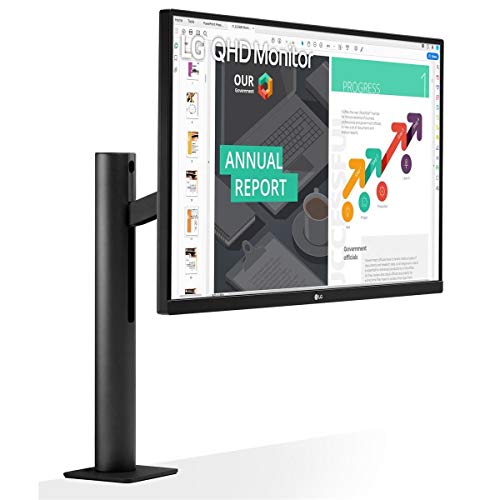
Specs
Panel | 27" IPS, 2560x1440 (QHD) |
Refresh | 75 Hz |
Color | 99% sRGB, HDR10 |
USB-C | Power delivery + data |
Stand | Ergo C-clamp arm |
Extras | AMD FreeSync |
Panel
27" IPS, 2560x1440 (QHD)
Refresh
75 Hz
Color
99% sRGB, HDR10
USB-C
Power delivery + data
Stand
Ergo C-clamp arm
Extras
AMD FreeSync
What it does well
The 27QN880-B earns its spot on the stand alone. LG's Ergo arm clamps to the desk edge and swings the panel almost anywhere, including fully out of the way, which a pedestal stand simply cannot do. That makes it the natural choice for a dual-monitor wall or a cramped desk where every inch of footprint counts.
The panel itself is honest: a 27-inch QHD IPS screen with 99 percent sRGB coverage that keeps color accurate for general work, plus HDR10 support for media. USB-C carries video, data, and power off a laptop down a single cable, so it still docks a thin-and-light cleanly.
What you give up
The clamp is the whole pitch, and it needs a desk edge it can actually grip, so it is fiddlier to set up than a normal stand and will not work on every surface. USB-C power delivery here is lower than the Dell or the premium ProArt, so it suits an ultrabook more than a workstation laptop.
The refresh tops out at 75 Hz, in line with most of the productivity field, so this is not the pick if smooth gaming is on your list.
Who it's for
The buyer whose real constraint is desk real estate, not budget. Anyone building a multi-monitor setup, or working on a small or shared desk, will get more out of the clamp arm than out of an extra few percent of color gamut. Confirm your desk edge fits the clamp first. Dorm desks are the extreme version of that constraint, and our picks for the best monitors for college students work through the same size-versus-depth math on a much smaller surface.
Bottom line
If you dock a laptop every morning or share a screen between two machines, buy the Dell UltraSharp U2724DE. The Thunderbolt 4 dock and the built-in KVM are the reason it leads.
If you want accurate color and a one-cable dock without the Thunderbolt premium, the ASUS ProArt PA278CV is the right default for most desks. Step up to the PA278CGV only if you genuinely game on the same panel. Drop to the PA278QV if you run a desktop over DisplayPort and never plug in a laptop. And if your desk is the constraint, the LG 27QN880-B Ergo and its clamp arm solve a problem none of the others do. Once the screen is sorted, make sure the CPU behind it matches the work.
FAQ
Is 1440p better than 4K for a work monitor?
At 27 inches, 1440p is often the more comfortable choice for everyday work. Native QHD runs at 100 percent scaling without the fractional-scaling artifacts that show up in code editors, terminals, and some older apps on a 4K panel. 4K does render text sharper when it is scaled correctly, so if you spend all day reading dense documents and you are happy to set 150 percent scaling, a 4K panel pays off. For mixed productivity on a single 27-inch screen, 1440p is the safer default and asks far less of your GPU.
Do I need a USB-C monitor for my laptop?
You do not strictly need one, but it removes a lot of desk friction. A single full-featured USB-C cable can carry video, charge the laptop, and share the monitor's USB hub for your keyboard and mouse, so you plug in once and you are working. The catch is that your laptop must support DisplayPort Alternate Mode over USB-C, and the monitor's power delivery has to match what your laptop needs to charge. Check both before buying. A desktop that connects over DisplayPort or HDMI gains nothing from USB-C, which is exactly why the Best Budget pick skips it.
What is a monitor KVM and do I need one?
A KVM lets two computers share one keyboard, video output, and mouse, switching between them without unplugging anything. A monitor with a built-in KVM, like the Dell UltraSharp U2724DE, builds that switch into the panel, so a work laptop and a personal desktop can run on the same screen and the same peripherals. You need one only if you actually run two machines at one desk. If you have a single computer, a KVM is a feature you will pay for and never use, so it is not worth chasing.
Is 27 inches the right size for a 1440p monitor?
27 inches is the standard pairing for 1440p, and the pixel density lands around 109 pixels per inch, which is sharp enough for crisp text at a normal viewing distance without needing to scale. Going larger to 32 inches at the same 1440p resolution spreads those pixels out and text starts to look softer, so 32-inch panels are usually better paired with 4K. For a single QHD work monitor, 27 inches is the size to buy.
Can I game on a 1440p productivity monitor?
Yes, and that is part of the appeal. Every pick here runs games fine; the difference is refresh rate. The 75 Hz panels are smooth enough for slower single-player and strategy titles, while the Dell at 120 Hz and the ASUS ProArt PA278CGV at 144 Hz with FreeSync are genuinely good for faster games. If gaming is more than an occasional bonus, the PA278CGV is the one to reach for, since it pairs the productivity features with a real gaming refresh rate.
Related Articles

AMD vs Intel 2026: 4 Tier Matchups for Gaming & Work
AMD vs Intel for gaming in 2026, settled tier by tier: a clear winner at every price band from budget to flagship, plus a separate productivity verdict.
Aug 10, 2026

How to Choose a GPU (and a Monitor That Matches)
A buyer's framework for picking a GPU and the monitor that pairs with it. Start with the panel and work the card back.
May 17, 2026

Best 27-Inch Gaming Monitors (2026): 6 High-FPS Picks
The best 27-inch gaming monitors for 2026: six high-FPS picks from 180Hz IPS to 480Hz OLED, ranked by panel type, refresh rate, and what each one gives up.
Aug 4, 2026

Best 1440p OLED Gaming Monitors (2026): QD-OLED vs WOLED Picks
The best 1440p OLED gaming monitors of 2026, from value-tier 360Hz QD-OLED to 480Hz WOLED flagship. With burn-in mitigation guidance.
May 14, 2026

Best 4K HDR Monitors 2026: 5 Picks for Gaming and Creators
The best 4K HDR monitors in 2026: five OLED picks for gaming and creator work, with real HDR you can see, panel-revision traps, and an honest budget call.
Aug 4, 2026