Affiliate Disclosure: As an Amazon Associate we earn from qualifying purchases. Some links may earn us a commission at no cost to you.

CPU and GPU Bottleneck Explained: How to Check Yours
Your build runs fine, but one part is quietly capping the other. That is a bottleneck, and almost every gaming PC has one. The question is not whether you have a bottleneck. It is which part is the limiter, and whether it is costing you frames you would notice.
This guide shows you how to read your own usage data in a few minutes with free tools, tell a CPU bottleneck from a GPU bottleneck, and decide what to upgrade. No calculator guesswork, just the two numbers your PC is already reporting.
What a bottleneck actually is
A bottleneck happens when one component finishes its work and sits waiting on another. In a game, the CPU prepares each frame (physics, AI, draw calls) and hands it to the GPU to render. If the CPU cannot feed frames fast enough, the GPU idles and your frame rate stalls below what the card can do. Flip it around and the GPU becomes the limiter while the CPU coasts.
Neither situation is broken. A perfectly balanced PC does not exist, because the balance shifts with resolution, settings, and the specific game. The 1080p esports match that hammers your CPU becomes a GPU-bound 4K cinematic the moment you raise the resolution. The goal is not to eliminate the bottleneck. It is to make sure the limiter is the part you care about, running at a frame rate that matches your monitor.
One rule of thumb saves a lot of money: the lower the resolution, the more the CPU matters, and the higher the resolution, the more the GPU matters. At 1080p the CPU is doing the most work relative to the GPU. At 4K the GPU is almost always the limiter and the CPU barely breaks a sweat.
How to check for a bottleneck yourself
You do not need a calculator or a synthetic benchmark. You need two live numbers while you actually play: GPU utilization and CPU utilization. Here is the fastest way to see both.
Task Manager (built into Windows). Press Ctrl+Shift+Esc, open the Performance tab, and watch the GPU and CPU graphs while a game runs in borderless or windowed mode. It is rough, but it is already on your machine and good enough for a first read.
MSI Afterburner with RivaTuner (free). This is the real tool. Install Afterburner, enable the on-screen display, and add GPU usage, CPU usage, and frame rate to the overlay. Now you can see, in-game and frame by frame, exactly which part is pinned. Play your actual games at your actual settings for a few minutes each.
Read it like this. If GPU utilization sits at 97 to 100 percent during demanding scenes, the GPU is the limiter and the system is healthy. That is what you want at the resolution you play. If GPU utilization keeps dropping into the 70s or 60s while your frame rate sags and one or two CPU threads are maxed, the CPU is holding the GPU back. That is a CPU bottleneck.
CPU-bound vs GPU-bound: what each reading means
GPU-bound is the normal, desirable state for most gamers. Your graphics card is the most expensive part and the one doing the heavy lifting at 1440p and 4K. When the GPU is pinned near 100 percent, you are getting everything you paid for. The only fix for more frames here is a faster GPU or lighter settings.
CPU-bound is the state worth catching. It shows up most at 1080p, in competitive esports titles chasing 200 plus FPS, in simulation and strategy games with heavy logic, and in anything with a lot of NPCs or physics. The tell is a graphics card that refuses to stretch its legs: utilization bouncing around in the 60s and 70s while frames stay flat. If you just bought a strong GPU and it feels slower than the reviews promised at 1080p, an older CPU is usually the reason.
The table below maps the two utilization readings to a diagnosis and a fix. Pull up your overlay, find the row that matches what you see, and read across.
Bottleneck scenarios and what to do
This is the diagnostic core of the whole topic. Match your two readings, then act on the right column.
GPU usage | CPU usage | What it means | What to do |
|---|---|---|---|
97 to 100% | Below 70%, no single thread maxed | GPU-bound. Healthy at 1440p/4K. | Nothing, or upgrade the GPU for more frames. |
60 to 80%, fluctuating | One or two threads near 100% | CPU-bound. The CPU is starving the GPU. | Upgrade the CPU, or raise resolution/settings to shift load to the GPU. |
Below 60% | All threads near 100% | Hard CPU bottleneck or a background process. | Upgrade the CPU, close background apps, check for a stuck update. |
100% but low FPS | Low to moderate | GPU is the limiter and simply not fast enough for your settings. | Drop settings or upscale, or move to a faster GPU. |
100% with VRAM full | Low to moderate | VRAM bottleneck. The card runs out of memory and stutters. | Lower texture quality, or move to a 16 GB card. |
97 to 100%
- CPU usage
Below 70%, no single thread maxed
- What it means
GPU-bound. Healthy at 1440p/4K.
- What to do
Nothing, or upgrade the GPU for more frames.
60 to 80%, fluctuating
- CPU usage
One or two threads near 100%
- What it means
CPU-bound. The CPU is starving the GPU.
- What to do
Upgrade the CPU, or raise resolution/settings to shift load to the GPU.
Below 60%
- CPU usage
All threads near 100%
- What it means
Hard CPU bottleneck or a background process.
- What to do
Upgrade the CPU, close background apps, check for a stuck update.
100% but low FPS
- CPU usage
Low to moderate
- What it means
GPU is the limiter and simply not fast enough for your settings.
- What to do
Drop settings or upscale, or move to a faster GPU.
100% with VRAM full
- CPU usage
Low to moderate
- What it means
VRAM bottleneck. The card runs out of memory and stutters.
- What to do
Lower texture quality, or move to a 16 GB card.
Fixing a GPU bottleneck: which GPU to upgrade to
If your graphics card is pinned at 100 percent and the frame rate is lower than you want, the GPU is the honest limiter and a faster card is the fix. This is the most common upgrade for anyone playing at 1440p or 4K, or anyone pushing high refresh at 1080p. Match the card to your monitor: there is no point buying a 4K-class GPU to feed a 1080p panel you are already CPU-bound on. If the processor in question is a Ryzen 7 5800X3D, the pairing ceiling moves with resolution rather than sitting at one fixed tier, which we map card by card in our guide to the best GPUs for the Ryzen 7 5800X3D.

For a clean 1440p high-refresh fix, the ASUS TUF RTX 5070 OC is the sweet spot. It clears 1440p ultra in most titles with frames to spare and has the cooler and power headroom to run quiet. It is the card that turns a GPU-bound 1440p build back into a smooth one.
If you are on a tighter budget or playing mostly at 1080p, the ASUS TUF RTX 5060 Ti in its 16 GB trim is the value pick. The extra VRAM matters because an 8 GB card is the classic VRAM bottleneck at modern texture settings. For a full breakdown of cards by tier, see our best GPUs for 1080p gaming guide.
On the AMD side, the Sapphire Pulse RX 9070 is the strong 16 GB alternative at the 1440p tier, with plenty of memory for high-resolution textures. If you are buying for 1440p specifically, our best GPUs for 1440p gaming picks line up the options side by side.
If you are not sure how much GPU your monitor justifies, the how to choose a GPU and monitor pillar walks through matching the card to the panel so you do not overspend on either.
Fixing a CPU bottleneck: which CPU to upgrade to
If your GPU keeps dropping below 100 percent while one or two CPU threads sit pinned, the processor is the limiter. This is most likely if you pair a recent graphics card with an older chip, or if you chase very high frame rates at 1080p in esports and simulation titles. Before you buy, confirm it is really the CPU and not a background process or a thermal throttle, then upgrade with the platform in mind: a new AM5 chip needs an AM5 board and DDR5.
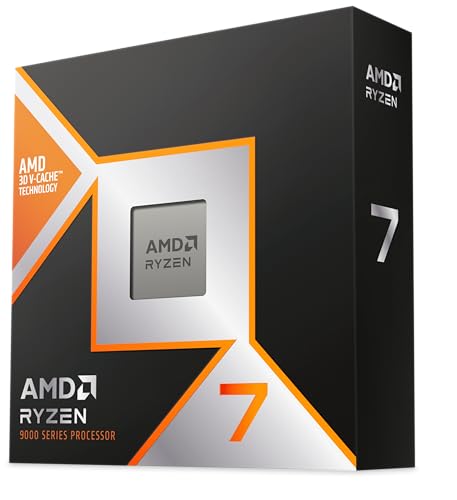
For pure gaming, the AMD Ryzen 7 9800X3D is the chip that erases CPU bottlenecks. Its large 3D V-Cache feeds the GPU in exactly the CPU-bound scenarios that starve weaker processors, and it holds 1 percent lows together when a game gets busy. If you keep a strong GPU but feel held back at 1080p or in heavy sim titles, this is the upgrade.
You do not always need the top X3D chip. If your bottleneck is mild or your budget is tighter, the AMD Ryzen 5 9600X is a capable six-core that clears most CPU-bound situations for far less. To weigh whether the flagship is worth it for your games, read is the Ryzen 7 9800X3D worth it for gaming.
For a tier-by-tier look at processors that pair well with a high-refresh 1080p setup, see our best CPUs for 1080p gaming guide.
Bottom line
Open MSI Afterburner, play your real games, and watch one number: GPU utilization. If it sits near 100 percent, you are GPU-bound and a faster card is your only path to more frames. If it keeps dropping while a CPU thread maxes out, you are CPU-bound and the processor is the upgrade.
For most gamers at 1440p and 4K, the answer is GPU first, and the RTX 5070 is the upgrade that fixes a GPU bottleneck without overspending. If you are stuck at 1080p with a recent card that feels slow, look at the CPU instead. Diagnose before you buy, and you will spend on the part that moves your frame rate.
FAQ
What is a CPU GPU bottleneck in simple terms?
It is when one part finishes its work and waits on the other, capping your frame rate below what the faster part could deliver. In games the CPU feeds frames to the GPU; if either cannot keep up, it becomes the bottleneck. Every PC has one, so the goal is to make sure the limiter is the part you care about at the resolution you play.
How do I know if my CPU is bottlenecking my GPU?
Run MSI Afterburner with the on-screen display and watch GPU utilization while you play. If the GPU keeps dropping below 100 percent (often into the 60s and 70s) while one or two CPU threads sit pinned and your frame rate is flat, the CPU is the limiter. A GPU that stays near 100 percent means you are GPU-bound, which is the healthy state at 1440p and 4K.
Is a bottleneck bad for my PC?
No. A bottleneck does not damage hardware. It only means you are not getting maximum frames from the faster component. Every build has a limiter that shifts with resolution and settings. It only matters when the limiter is dragging your frame rate below your monitor's refresh in games you play.
Should I upgrade my CPU or GPU to fix a bottleneck?
Check which part is the limiter first. If the GPU is pinned at 100 percent, upgrade the GPU. If the GPU is underused while a CPU thread maxes out, upgrade the CPU. For most gamers at 1440p and 4K the GPU is the answer; CPU upgrades pay off mainly at 1080p, in high-refresh esports, and in simulation titles.
Do bottleneck calculators actually work?
Not really. Online calculators guess a single percentage from part names without knowing your resolution, settings, or games, and the same pair can be CPU-bound in one title and GPU-bound in another. Your own utilization readings in Afterburner are far more accurate because they measure your actual workload rather than estimating from a database.
Does resolution change my bottleneck?
Yes, a lot. Lower resolutions lean on the CPU, so 1080p is where CPU bottlenecks show up most. Higher resolutions lean on the GPU, so at 4K the graphics card is almost always the limiter and the CPU barely matters. Raising resolution or settings is a quick way to shift load from a bottlenecked CPU onto the GPU.
Related Articles

How to Choose a GPU (and a Monitor That Matches)
A buyer's framework for picking a GPU and the monitor that pairs with it. Start with the panel and work the card back.
May 17, 2026

Is the Ryzen 7 9800X3D Worth It in 2026? Buy or Skip
Buy the Ryzen 7 9800X3D for 360Hz shooters, sim racing and heavy strategy. Skip it at 1440p on a mid-tier GPU. Full 2026 verdict vs the 9600X and 9850X3D.
Aug 26, 2026

Best GPUs for 1080p Gaming (2026): Picks by Refresh Tier
The best GPU for 1080p gaming in 2026, picked by refresh tier and game genre. From a budget Intel Arc card to a 240Hz esports pick, plus honest 8GB verdicts.
Jun 22, 2026

Best GPUs for 1440p Gaming (2026): 5 16GB Picks, 60-240Hz
The best GPUs for 1440p gaming in 2026: five 16GB picks matched to 60, 144, and 240 Hz targets, with real benchmarks, trade-offs, and who each card fits.
Aug 8, 2026

Best CPUs for 1080p Gaming (2026): 7 Picks, AMD and Intel
The best CPUs for 1080p gaming in 2026. Seven AMD and Intel picks from a budget AM4 chip to the gaming flagship, matched to 60Hz, 144Hz and 240Hz targets.
Aug 21, 2026