Affiliate Disclosure: As an Amazon Associate we earn from qualifying purchases. Some links may earn us a commission at no cost to you.

Best Gaming Monitors for the RTX 5090 (2026): 5 Picks
You already bought the card. The panel is the last decision left, and it is the one that decides how a 5090 feels from your chair.
Most buyers get the order backwards. The card outruns every monitor on this page in Counter-Strike 2 and in older single-player titles. Every monitor on this page outruns the card in path-traced Cyberpunk 2077. Work out which of those two situations describes your library, then pick the panel that fits it. The DisplayPort question follows from that, not the other way around.
Our top pick: MSI MPG 322URX QD-OLED
The MSI MPG 322URX QD-OLED is the only panel here that accepts the 5090's full DisplayPort 2.1 output, so 4K at 240 Hz and 10-bit colour runs with nothing compressed anywhere in the chain.

Quick picks
Pick | Monitor | Best for | Buy |
|---|---|---|---|
Best Overall | 4K 240 with no compression in the chain | ||
Best Value | Flagship QD-OLED with burn-in warranty | ||
Best Premium | Tandem OLED brightness in a lit room | ||
Best Budget | 4K 160 with zero burn-in risk | ||
Editor's Pick | 4K 240 and 1080p 480 in one panel |
Best Overall
- Monitor
- Best for
4K 240 with no compression in the chain
- Buy
Best Value
- Monitor
- Best for
Flagship QD-OLED with burn-in warranty
- Buy
Best Premium
- Monitor
- Best for
Tandem OLED brightness in a lit room
- Buy
Best Budget
- Monitor
- Best for
4K 160 with zero burn-in risk
- Buy
Editor's Pick
- Monitor
- Best for
4K 240 and 1080p 480 in one panel
- Buy
Specs at a glance
Monitor | Panel | Resolution and refresh | DisplayPort | HDR |
|---|---|---|---|---|
31.5-inch QD-OLED | 4K at 240 Hz | 2.1a, UHBR20 | True Black 400 | |
31.5-inch QD-OLED | 4K at 240 Hz | 1.4 with DSC | True Black 400, 1000-nit peak | |
31.5-inch Tandem OLED | 4K at 240 Hz | 1.4 with DSC | True Black 400 | |
31.5-inch Fast IPS | 4K at 160 Hz, 1080p at 320 Hz | 1.4 | HDR400, 450-nit peak | |
31.5-inch WOLED | 4K at 240 Hz, 1080p at 480 Hz | 2.1, UHBR13.5 | True Black 400 |
- Panel
31.5-inch QD-OLED
- Resolution and refresh
4K at 240 Hz
- DisplayPort
2.1a, UHBR20
- HDR
True Black 400
- Panel
31.5-inch QD-OLED
- Resolution and refresh
4K at 240 Hz
- DisplayPort
1.4 with DSC
- HDR
True Black 400, 1000-nit peak
- Panel
31.5-inch Tandem OLED
- Resolution and refresh
4K at 240 Hz
- DisplayPort
1.4 with DSC
- HDR
True Black 400
- Panel
31.5-inch Fast IPS
- Resolution and refresh
4K at 160 Hz, 1080p at 320 Hz
- DisplayPort
1.4
- HDR
HDR400, 450-nit peak
- Panel
31.5-inch WOLED
- Resolution and refresh
4K at 240 Hz, 1080p at 480 Hz
- DisplayPort
2.1, UHBR13.5
- HDR
True Black 400
Benchmarks
CPU-bound long before the GPU saturates at 1080p, so the panel is the limiter rather than the card.
- 432 FPS
- 190 FPS
Unreal Engine 5 with heavy traversal cost. The hardest native case in the suite.
- 94 FPS
- 71 FPS
Well-optimised AAA, and the case where a 4K high-refresh panel earns its refresh headroom natively.
- 268 FPS
- 195 FPS
Path tracing is the one workload where even a 5090 needs upscaling at 4K.
- 57 FPS
- 200 FPS
Read those numbers as a frame budget, not a scoreboard. At 4K native the card sits near 195 fps in God of War Ragnarok, near 71 in S.T.A.L.K.E.R. 2, and near 57 in path-traced Cyberpunk 2077. A 4K 240 Hz panel is not a promise of 240 fps everywhere. It is motion clarity when you get there, headroom in the games that already run fast, and a ceiling for frame generation in the ones that do not.
Frame generation is the lever people reach for next, and it is worth being precise about it. It turns 60 into 120 and 90 into 180. It never turns 30 into 120. Competitive players should have it switched off, which is exactly why two panels on this list carry a 1080p high-refresh mode instead of asking a 4K screen to do everything.
Does the RTX 5090 need DisplayPort 2.1?
Short answer: no, but this is the first Nvidia generation where the question is worth asking. The 50-series ships DisplayPort 2.1b with full UHBR20, an 80 Gbps link. Every card before it topped out at DisplayPort 1.4 and its 32.4 Gbps HBR3 link.
The number that matters is 68.6 Gbps, roughly what 4K at 240 Hz and 10-bit colour needs uncompressed. That fits inside UHBR20 with room to spare. It does not fit inside HBR3, and it is not close, so any DisplayPort 1.4 monitor running 4K 240 Hz is using Display Stream Compression to get there.
DSC is certified visually lossless by VESA, and in normal use you will not see it. What you can run into are the second-order quirks that trail it: mode-set weirdness when a second display wakes, and the older restrictions around DLDSR. So DisplayPort 2.1 removes a compression step rather than improving the picture, and whether that is worth paying for depends on how much those edge cases matter to you. Our guide on how to choose a gaming monitor walks the rest of the panel decision.
One thing to plan for either way. UHBR20 only negotiates at full rate on a certified cable at a sensible length. Reports suggest longer or uncertified DisplayPort runs quietly drop the link speed, at which point a DisplayPort 2.1 monitor lands back on DSC without telling you. Buy the certified cable with the monitor.
How we picked
Resolution, refresh, and game type first. Panels second. That order is the whole framework. A 5090 pointed at a 1440p 165 Hz screen is a card doing half its job, and a 5090 pointed at 4K 240 Hz in a library of path-traced single-player games is a panel doing half of its.
The display is the biggest unforced error in current PC buying. It is the part you literally stare at, and it is the line item people cut after committing to the most expensive component in the machine. A buyer who reached this GPU tier and then paired it with a leftover screen has inverted the whole build. If the budget got tight on the way here, the honest move is a step down the GPU ladder rather than a step down the panel one, and our pairing guide for the RTX 5070 covers what that looks like.
From there the filters are simple. 4K, because a 5090 at 1440p is running out of things to do. High refresh, because motion clarity is the one thing you cannot buy back later. A stated DisplayPort generation, because it is the spec manufacturers stay quietest about.
Best Overall: MSI MPG 322URX QD-OLED
Specs
Panel | 31.5-inch QD-OLED |
Resolution | 3840 x 2160 |
Refresh rate | 240 Hz |
Response time | 0.03 ms GtG |
Video inputs | DisplayPort 2.1a (UHBR20), 2x HDMI 2.1, USB-C |
HDR | VESA DisplayHDR True Black 400 |
Pixel density | 140 PPI |
Extras | USB-C DP Alt Mode with power delivery, KVM |
Panel
31.5-inch QD-OLED
Resolution
3840 x 2160
Refresh rate
240 Hz
Response time
0.03 ms GtG
Video inputs
DisplayPort 2.1a (UHBR20), 2x HDMI 2.1, USB-C
HDR
VESA DisplayHDR True Black 400
Pixel density
140 PPI
Extras
USB-C DP Alt Mode with power delivery, KVM
What it does well
This is the only monitor on the list that uses the connectivity the 5090 shipped with. UHBR20 at 4K, 240 Hz, and 10-bit colour sits inside the 80 Gbps link with headroom left over, so the signal path stays uncompressed end to end. No other GPU tier can make that claim, which makes this pairing specific rather than generic.
The panel is third-generation QD-OLED at 0.03 ms, which buys motion clarity no IPS panel matches at any price. Fast camera pans stay legible. The USB-C leg also carries video and power together, and the built-in KVM turns that into a real two-machine desk rather than a spec-sheet bullet.
What you give up
The coating is glossy. In a dark room that is exactly what you want and the blacks are genuinely black. Put a window behind you and QD-OLED blacks lift toward grey, which is a panel-technology limit rather than a settings problem. If you cannot control the light, the matte options further down serve you better.
Text rendering is the other trade. QD-OLED sub-pixel layout softens small type against an equivalent IPS panel. For gaming it is invisible. For eight hours of spreadsheets it is not. The speakers exist, and that is the most generous thing to say about them.
Who it's for
The 5090 owner who wants the card's connectivity ceiling used rather than described, playing a mixed library in a room with controlled lighting. If you read the DisplayPort section and thought yes, that matters, this is your monitor. Connectivity is the easy half of the pairing. whether the card clears 240fps at 4K is the harder one, and it splits sharply between esports and path-traced AAA.
Best Value: Samsung Odyssey OLED G8 (G81SF)

Specs
Panel | 31.5-inch QD-OLED, third generation |
Resolution | 3840 x 2160 |
Refresh rate | 240 Hz |
Response time | 0.03 ms GtG |
Video inputs | DisplayPort 1.4 with DSC, 2x HDMI 2.1 |
HDR | DisplayHDR True Black 400, 1000-nit peak |
Panel cooling | Pulsating heat pipe |
Warranty | 3 years including burn-in |
Panel
31.5-inch QD-OLED, third generation
Resolution
3840 x 2160
Refresh rate
240 Hz
Response time
0.03 ms GtG
Video inputs
DisplayPort 1.4 with DSC, 2x HDMI 2.1
HDR
DisplayHDR True Black 400, 1000-nit peak
Panel cooling
Pulsating heat pipe
Warranty
3 years including burn-in
What it does well
Same third-generation QD-OLED panel class as the pick above, for less, and with the best warranty on this page. Samsung covers burn-in explicitly for three years, which is the most expensive risk anyone takes on an OLED desk monitor. That is a real transfer of risk off the buyer, not a marketing line.
The 1000-nit peak is where the panel earns its tier. Specular highlights in HDR land with actual punch instead of the muted look that trails cheaper OLEDs. Samsung also fits a pulsating heat pipe rather than a graphite sheet, which is part of why that burn-in cover exists. If your shortlist is purely 4K 240 Hz OLED, our roundup of 4K 240Hz OLED panels specifically goes deeper.
What you give up
DisplayPort 1.4, and that is the whole counterpoint. Every 4K 240 Hz signal on this panel goes through DSC, and reviewers have consistently named the missing DisplayPort 2.1 as this model's one real omission. It is a strange thing to leave off a flagship.
In practice you are betting you will not hit the DSC edge cases. Buyers have flagged black-screen-on-wake behaviour on multi-display setups and the usual DLDSR restrictions. Most people never see either.
Who it's for
The buyer who wants flagship QD-OLED image quality and the strongest burn-in cover available, and who treats the DisplayPort generation as an accounting detail. That is defensible, and this is the panel that rewards it.
Best Premium: ASUS ROG PG32UCDM3

Specs
Panel | 31.5-inch Tandem OLED |
Resolution | 3840 x 2160 |
Refresh rate | 240 Hz |
Response time | 0.03 ms GtG |
Video inputs | DisplayPort, 2x HDMI 2.1, USB-C |
HDR | DisplayHDR True Black 400 |
Panel care | Custom heatsink, ASUS OLED Care suite |
Stand | Height, tilt, swivel, pivot |
Panel
31.5-inch Tandem OLED
Resolution
3840 x 2160
Refresh rate
240 Hz
Response time
0.03 ms GtG
Video inputs
DisplayPort, 2x HDMI 2.1, USB-C
HDR
DisplayHDR True Black 400
Panel care
Custom heatsink, ASUS OLED Care suite
Stand
Height, tilt, swivel, pivot
What it does well
Tandem OLED is the first answer to the OLED complaint that has nothing to do with black level. Stacking two emissive layers lifts full-field brightness well past a single-layer panel, so a bright HDR scene or a white document holds its brightness instead of being pulled down by the automatic limiter. Anyone who has watched an OLED dim mid-scene knows the behaviour this fixes.
ASUS pairs it with the most complete panel-care stack here: a custom heatsink, scheduled pixel cleaning, and a uniform-brightness mode for desktop work. If this is your only display, it is the one built with that in mind. Our take on whether OLED is worth it is the honest version of that wider argument.
What you give up
Price, by a clear margin over everything else here. You are paying for brightness and panel care, not connectivity, because the bandwidth story is the same DSC path as the Samsung.
The other trade is time. Tandem desktop panels are new enough that long-run burn-in behaviour is a projection rather than a track record. Reports suggest strong early results, but nobody has a multi-year record on this panel generation. Buying first-generation anything means accepting that.
Who it's for
The buyer who already decided on OLED and whose complaint about the last one was brightness in a lit room rather than black level. If you sit near a window and refuse to give up an emissive panel, this is the one.
Best Budget: AOC U32G4
Specs
Panel | 31.5-inch Fast IPS |
Resolution | 3840 x 2160, dual-mode 1920 x 1080 |
Refresh rate | 160 Hz at 4K, 320 Hz at 1080p |
Response time | 0.5 ms MPRT at 4K, 0.3 ms at 1080p |
Video inputs | DisplayPort 1.4, 2x HDMI 2.1 |
Colour | 99% sRGB, 95% DCI-P3 |
HDR | HDR400, 450-nit peak |
Adaptive sync | G-SYNC Compatible |
Panel
31.5-inch Fast IPS
Resolution
3840 x 2160, dual-mode 1920 x 1080
Refresh rate
160 Hz at 4K, 320 Hz at 1080p
Response time
0.5 ms MPRT at 4K, 0.3 ms at 1080p
Video inputs
DisplayPort 1.4, 2x HDMI 2.1
Colour
99% sRGB, 95% DCI-P3
HDR
HDR400, 450-nit peak
Adaptive sync
G-SYNC Compatible
What it does well
4K at 160 Hz sits above where a 5090 actually lands in most heavy AAA, which is the point. Look back at the benchmark tables. S.T.A.L.K.E.R. 2 at 4K native runs near 71 fps and path-traced Cyberpunk 2077 near 57. In the games that stress this card hardest, this panel is not the limiter. If you are still choosing the card behind the panel, our RTX 5090 vs RTX 4090 comparison lays out where the 5090's extra 4K headroom actually shows up.
The 1080p 320 Hz mode makes it a competitive display without owning a second screen. There is no burn-in risk, no pixel-refresh routine, and no brightness limiter cutting in when a scene goes bright. Leave a static HUD on it all day and never think about it. The matte IPS coating also holds up in a lit room.
What you give up
Contrast, and there is no softening this. Black scenes look grey next to any OLED on this page. HDR400 with a 450-nit peak is a label rather than an experience, so treat this as an SDR panel that accepts an HDR signal.
The 0.5 ms figure is MPRT, a motion-blur measurement rather than an OLED-class pixel response. Fast IPS is fast for IPS. If you have used an OLED you will see it in the first five minutes. Our comparison of OLED against IPS lays out where each one wins. Dual-mode switching also drops you to a scaled 1080p signal, so desktop work stays on the native 4K mode.
Who it's for
The buyer who spent the whole budget on the card, or who works on this screen all day and does not want to manage an OLED. A sane floor for this GPU rather than a compromise you will resent.
Editor's Pick: LG UltraGear 32GX870A
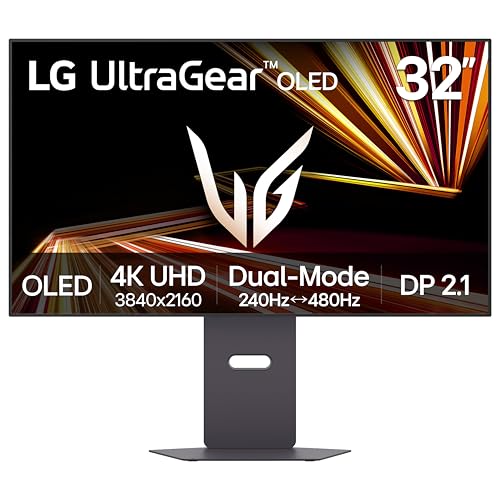
Specs
Panel | 31.5-inch WOLED |
Resolution | 3840 x 2160, dual-mode 1920 x 1080 |
Refresh rate | 240 Hz at 4K, 480 Hz at 1080p |
Response time | 0.03 ms GtG |
Video inputs | DisplayPort 2.1, 2x HDMI 2.1, USB-C |
HDR | VESA DisplayHDR True Black 400 |
Coating | Anti-glare matte |
Adaptive sync | G-SYNC Compatible, FreeSync Premium Pro |
Panel
31.5-inch WOLED
Resolution
3840 x 2160, dual-mode 1920 x 1080
Refresh rate
240 Hz at 4K, 480 Hz at 1080p
Response time
0.03 ms GtG
Video inputs
DisplayPort 2.1, 2x HDMI 2.1, USB-C
HDR
VESA DisplayHDR True Black 400
Coating
Anti-glare matte
Adaptive sync
G-SYNC Compatible, FreeSync Premium Pro
What it does well
This is the pick that refuses to make you choose. 4K at 240 Hz for the path-traced single-player library, 1080p at 480 Hz for the competitive one, on the same panel and one keypress apart. If your play time genuinely splits across both, nothing else here covers it.
The matte anti-glare coating is the underrated part. WOLED with a matte finish handles a lit room far better than the glossy QD-OLED panels above, and that is the difference most buyers notice day to day, well before colour volume. DisplayPort 2.1 and USB-C keep the cabling sensible.
What you give up
WOLED colour volume trails QD-OLED once brightness climbs, so saturated highlights have less punch than on the MSI or the Samsung. The matte coating that rescues you in a bright room slightly veils blacks in a dark one.
The DisplayPort 2.1 badge here is UHBR13.5 rather than UHBR20, so 4K at 240 Hz and 10-bit still runs through DSC. It is a genuine DisplayPort 2.1 port, not the full-rate one the MSI has. The 480 Hz mode is also a scaled 1080p signal, a competitive tool rather than a general-purpose resolution.
Who it's for
The buyer whose library splits genuinely between path-traced single-player and a competitive shooter and does not want two monitors to serve both. Also the buyer with a bright room who still wants an emissive panel.
Bottom line
If you want the 5090's connectivity put to work, buy the MSI MPG 322URX QD-OLED. If you want the same panel class with burn-in cover and can live with DSC, buy the Samsung Odyssey OLED G8. If your complaint about OLED has always been brightness, the ASUS ROG PG32UCDM3 fixes it. If the card ate the budget, the AOC U32G4 is a sane floor rather than a compromise. And if your library splits between path tracing and competitive shooters, the LG UltraGear 32GX870A covers both. Still weighing whether this is even the right card, our argument that the 5090 is the wrong gaming buy takes the other side.
FAQ
Does the RTX 5090 need a DisplayPort 2.1 monitor?
No, but it is the first Nvidia card where the answer is interesting. The 50-series ships DisplayPort 2.1b with full UHBR20, an 80 Gbps link. 4K at 240 Hz and 10-bit colour needs roughly 68.6 Gbps, which fits uncompressed on UHBR20 and does not fit on DisplayPort 1.4. A DisplayPort 1.4 panel gets there with DSC, which is certified visually lossless. DisplayPort 2.1 removes a compression step rather than improving the image.
Can the RTX 5090 actually hit 240 fps at 4K?
In some games, yes. Counter-Strike 2 at 4K max settings runs near 190 fps and God of War Ragnarok lands near 195 fps at 4K native. In heavy modern titles it does not come close: S.T.A.L.K.E.R. 2 sits near 71 fps and path-traced Cyberpunk 2077 near 57. Upscaling and frame generation close much of that gap, but they are a smoothness multiplier rather than a performance level. Buy the 240 Hz panel for motion clarity and headroom.
Is 4K 240Hz or 1440p 480Hz better for the RTX 5090?
It depends on what you play, and the two dual-mode picks exist because plenty of people play both. If your hours go to single-player games with heavy lighting, 4K is where the card's extra silicon shows up and 1440p leaves it idling. If your hours go to competitive shooters, refresh and latency beat resolution and the card feeds 480 Hz comfortably at 1080p. A dual-mode panel gives you both, at the cost of a scaled signal in fast mode.
Does DSC hurt image quality at 4K 240Hz?
Not visibly. Display Stream Compression is certified visually lossless by VESA, and in side-by-side viewing you will not pick it out. The complaints that follow DSC are behavioural rather than visual: mode-set quirks when a second display wakes, occasional black screens on multi-monitor setups, and older DLDSR restrictions. Run a single display and DSC is a non-issue. Run three and a native DisplayPort 2.1 panel starts earning its premium.
What DisplayPort cable do you need for 4K 240Hz on an RTX 5090?
Use the VESA-certified DP80 cable that ships with the monitor and keep the run short. UHBR20 negotiates at full rate only on a certified cable at a sensible length. Reports suggest longer or uncertified runs quietly drop the link speed, and the monitor then falls back to DSC without telling you. That defeats the reason for buying a DisplayPort 2.1 panel. If you need distance, use an active optical DP80 cable.
Is a 27-inch or 32-inch 4K monitor better for the RTX 5090?
32-inch, for most desks. 4K on a 32-inch panel lands near 140 PPI, sharp without forcing display scaling in Windows, and it gives the resolution somewhere to go. 4K on 27 inches is sharper at roughly 163 PPI, but you will almost certainly run scaling, which throws away part of what you paid for. The 27-inch case is a shallow desk, or a competitive setup where you want the whole frame in your field of view.
Related Articles

Best 4K 240Hz OLED Gaming Monitors 2026: 6 Picks Compared
The best 4K 240Hz OLED gaming monitors, ranked: which 27 and 32 inch QD-OLED and WOLED panels are worth buying, and which RTX 5090 pairing needs DP 2.1a.
Sep 13, 2026

Best Gaming Monitors for RTX 5070 (2026): 1440p to 4K OLED
Five monitors paired to the RTX 5070 by resolution tier: 1440p 240Hz IPS, 4K OLED, and ultrawide. Includes DLSS 4 reality check and pairing framework.
Jun 3, 2026

How to Choose a Gaming Monitor: 2026 Buyer's Guide
How to choose a gaming monitor in 2026: match resolution, refresh rate, and panel type to your GPU so you never overpay for pixels your card cannot push.
Jul 19, 2026

OLED vs IPS for Gaming 2026: Verdict + 4 OLED, 4 IPS Picks
OLED vs IPS for gaming: OLED wins motion and HDR, IPS wins bright rooms, burn-in peace of mind, and price. See which fits you, plus the best monitor of each.
Oct 4, 2026

Is the RTX 5090 Worth It for Gaming? Buy the 5080 Instead
Is the RTX 5090 worth it for gaming? It costs nearly 2x the RTX 5080 but doesn't deliver 2x the frames. See the math, and when its premium actually pays off.
Jul 29, 2026