Affiliate Disclosure: As an Amazon Associate we earn from qualifying purchases. Some links may earn us a commission at no cost to you.

Best Monitor for Gaming Laptops (2026): 5 Desk Setup Picks
A gaming laptop on a desk plays very differently once it drives a proper external screen. The trick is matching that screen to the laptop's GPU and ports, not buying the fastest panel on the shelf.
These five monitors run from a 1080p 200 Hz panel for RTX 5050 and 5060 machines to a 360 Hz QD-OLED for RTX 5080 and 5090 laptops, with notes on which cable to use and what USB-C charging can and cannot do at a gaming load.
Our top pick: ASUS ROG Strix XG27ACS
The ASUS ROG Strix XG27ACS pairs a 1440p 180 Hz Fast IPS panel with a USB-C input that carries video, the resolution and refresh the RTX 5060 to 5070 Ti laptops most people own can drive well.

Quick picks
Pick | Monitor | Best for | Buy |
|---|---|---|---|
Best Overall | RTX 5060 to 5070 Ti laptops, 1440p at 180 Hz | ||
Best Value | Shared desk with a work laptop, KVM, 1440p at 200 Hz | ||
Best Premium | RTX 5080 and 5090 laptops, 1440p 360 Hz OLED | ||
Best Budget | RTX 5050 and 5060 laptops, 1080p at 200 Hz | ||
Editor's Pick | One-cable desk with 65 W USB-C charging |
Best Overall
- Monitor
- Best for
RTX 5060 to 5070 Ti laptops, 1440p at 180 Hz
Best Value
- Monitor
- Best for
Shared desk with a work laptop, KVM, 1440p at 200 Hz
Best Premium
- Monitor
- Best for
RTX 5080 and 5090 laptops, 1440p 360 Hz OLED
Best Budget
- Monitor
- Best for
RTX 5050 and 5060 laptops, 1080p at 200 Hz
Editor's Pick
- Monitor
- Best for
One-cable desk with 65 W USB-C charging
Specs at a glance
Monitor | Panel | Refresh | USB-C video | USB-C power |
|---|---|---|---|---|
27 inch IPS, 1440p | 180 Hz | DP Alt Mode | 7.5 W | |
27 inch IPS, 1440p | 200 Hz | DP Alt Mode | 18 W | |
27 inch QD-OLED, 1440p | 360 Hz | DP Alt Mode | 90 W | |
24 inch IPS, 1080p | 200 Hz | None | None | |
27 inch IPS, 1440p | 144 Hz | DP 1.4 Alt Mode | 65 W |
- Panel
27 inch IPS, 1440p
- Refresh
180 Hz
- USB-C video
DP Alt Mode
- USB-C power
7.5 W
- Panel
27 inch IPS, 1440p
- Refresh
200 Hz
- USB-C video
DP Alt Mode
- USB-C power
18 W
- Panel
27 inch QD-OLED, 1440p
- Refresh
360 Hz
- USB-C video
DP Alt Mode
- USB-C power
90 W
- Panel
24 inch IPS, 1080p
- Refresh
200 Hz
- USB-C video
None
- USB-C power
None
- Panel
27 inch IPS, 1440p
- Refresh
144 Hz
- USB-C video
DP 1.4 Alt Mode
- USB-C power
65 W
How we picked
We matched each monitor's refresh rate to what a laptop GPU tier can feed. RTX 5050 and 5060 laptops are at home at 1080p, RTX 5060 to 5070 Ti machines are the 1440p tier, and RTX 5080 and 5090 laptops are the ones with enough headroom in competitive shooters to use a 360 Hz panel. Our GPU and monitor matching guide goes deeper on that pairing.
Then the cable. On most gaming laptops the HDMI and DisplayPort outputs are wired straight to the dedicated GPU, which is why a MUX switch matters less when you game on an external screen. USB-C is less predictable: not every USB-C port outputs video, and some route through the integrated GPU. Look for DisplayPort Alt Mode or Thunderbolt on the port in your laptop's spec sheet before planning a one-cable setup.
USB-C power delivery got the most scrutiny. Gaming laptops commonly ship with adapters rated from about 180 W to 400 W, and no monitor here supplies more than 90 W. Monitor charging keeps a laptop topped up through work and browsing, but under a gaming load the barrel charger stays plugged in. If you want one cable for video, peripherals and Ethernet, a USB-C dock for gaming laptops does more than any monitor's built-in hub.
There are no benchmark charts here because a monitor does not change your frame rate; the laptop's GPU does. Specs come from manufacturer pages and from reviews by Tom's Hardware, RTINGS, PC Gamer, TechRadar and others, and each pick's weak spots are spelled out below. If spec sheets are new to you, our monitor spec sheet explainer covers each line.
Best Overall: ASUS ROG Strix XG27ACS
Specs
Panel | 27 inch Fast IPS, 2560 x 1440 |
Refresh rate | 180 Hz |
Response time | 1 ms GtG |
HDR | DisplayHDR 400 |
USB-C | DisplayPort Alt Mode, 7.5 W power delivery |
Other inputs | HDMI and DisplayPort 1.4 |
Sync | G-Sync Compatible, FreeSync, ELMB Sync |
Panel
27 inch Fast IPS, 2560 x 1440
Refresh rate
180 Hz
Response time
1 ms GtG
HDR
DisplayHDR 400
USB-C
DisplayPort Alt Mode, 7.5 W power delivery
Other inputs
HDMI and DisplayPort 1.4
Sync
G-Sync Compatible, FreeSync, ELMB Sync
What it does well
The XG27ACS is a 27 inch 1440p Fast IPS panel at 180 Hz, and ASUS lists the full 48 to 180 Hz range over both USB-C and DisplayPort. Plug in a laptop with a DisplayPort Alt Mode USB-C port and one cable carries the picture at full refresh.
Tom's Hardware gave it an Editor's Choice for its 180 Hz panel, G-Sync certification, ELMB Sync with overdrive and wide color gamut. PC Gamer scored it 90 and called it all the 1440p panel most players need. That is the right read for a laptop desk: 1440p at 180 Hz is a target an RTX 5060 to 5070 Ti laptop can reach in most games, so you are not paying for refresh the GPU never uses.
What you give up
The USB-C port delivers only 7.5 W, so it will not charge a laptop. RTINGS and TechSpot both flag this, and RTINGS lists no other USB ports, so there is no hub for a keyboard and mouse. Your charger and peripherals still plug into the laptop.
HDR is DisplayHDR 400, which is entry level; treat it as a wide-gamut SDR monitor. Watch the listing too. A newer XG27ACSR at 220 Hz sits beside it on Amazon and is a different model.
Who it's for
Buy it if you own an RTX 5060, 5070 or 5070 Ti laptop, want a sharp 1440p high-refresh screen at the desk, and are fine leaving the laptop on its own charger. Need something that travels instead? See our portable monitor picks.
Best Value: Gigabyte M27Q2

Specs
Panel | 27 inch SS IPS, 2560 x 1440 |
Refresh rate | 200 Hz (210 Hz overclock) |
Response time | 1 ms GtG |
HDR | DisplayHDR 400 |
USB-C | DisplayPort Alt Mode, 18 W power delivery |
Other inputs | 2x HDMI 2.0, DisplayPort 1.4 |
Extras | KVM switch, height-adjustable stand |
Panel
27 inch SS IPS, 2560 x 1440
Refresh rate
200 Hz (210 Hz overclock)
Response time
1 ms GtG
HDR
DisplayHDR 400
USB-C
DisplayPort Alt Mode, 18 W power delivery
Other inputs
2x HDMI 2.0, DisplayPort 1.4
Extras
KVM switch, height-adjustable stand
What it does well
The Gigabyte M27Q2 lists 200 Hz on a 27 inch 1440p SS IPS panel, with a 210 Hz overclock, and its USB-C port supports DisplayPort Alt Mode with up to 18 W of power. That is the most refresh in this lineup short of the OLED.
The built-in KVM is why it takes the value slot for laptop owners. A dedicated KVM button switches one keyboard and mouse between two computers, so a gaming laptop on USB-C and a work laptop on HDMI can share the same desk gear. The stand adjusts for height and tilt.
What you give up
We found no independent lab review yet, so the 200 Hz and 1 ms figures are Gigabyte's claims, not measured results. Gigabyte's spec sheet lists HDMI 2.0, which holds a laptop on HDMI well under 200 Hz at 1440p; the full refresh needs the DisplayPort or USB-C input.
18 W of USB-C power suits a phone, not a gaming laptop. The listing also sits next to a white M27Q2 ICE and an older M27QA ICE, which are separate products.
Who it's for
Buy it if you have an RTX 5050 to 5070 laptop, share the desk with a work machine and want one set of peripherals for both. More options at this tier live in our budget 1440p gaming monitors guide.
Best Premium: MSI MPG 271QRX QD-OLED

Specs
Panel | 27 inch QD-OLED, 2560 x 1440 |
Refresh rate | 360 Hz |
Response time | 0.03 ms GtG |
HDR | DisplayHDR True Black 400 |
USB-C | DisplayPort Alt Mode, 90 W power delivery |
Other inputs | 2x HDMI 2.1, DisplayPort 1.4 |
Extras | KVM, USB hub |
Warranty | 3 years, burn-in covered |
Panel
27 inch QD-OLED, 2560 x 1440
Refresh rate
360 Hz
Response time
0.03 ms GtG
HDR
DisplayHDR True Black 400
USB-C
DisplayPort Alt Mode, 90 W power delivery
Other inputs
2x HDMI 2.1, DisplayPort 1.4
Extras
KVM, USB hub
Warranty
3 years, burn-in covered
What it does well
The MSI MPG 271QRX is a 27 inch 1440p QD-OLED at 360 Hz, and it has the best laptop connectivity in this group: two HDMI 2.1 ports, DisplayPort 1.4 and a USB-C input with 90 W of power delivery, plus KVM and a USB hub. TechRadar called it a near perfect 27 inch QD-OLED.
A 0.03 ms response time keeps fast motion clean at 360 Hz, and that is where RTX 5080 and 5090 laptops pay off in competitive shooters. MSI backs the panel with a 3 year warranty that covers burn-in, and its OLED Care 2.0 suite runs pixel shift, pixel refresh and static screen detection.
What you give up
It is the most expensive pick here, and reviewers list brightness as a weak spot; Tom's Hardware found calibration cuts light output roughly in half. PC Gamer and TweakTown both note slightly fuzzy text, a QD-OLED trait that shows if the screen doubles for spreadsheets.
KitGuru calls the stand plasticky, and there are no speakers. The 90 W USB-C port charges at idle but cannot keep an RTX 5080 laptop fed under load. Some listings quote 98 W; that figure belongs to the 500 Hz 271QR X50, not this model.
Who it's for
Buy it if you own an RTX 5080 or 5090 laptop, play competitive shooters and want OLED motion clarity at the desk. Our 1440p OLED monitor guide covers other OLED options.
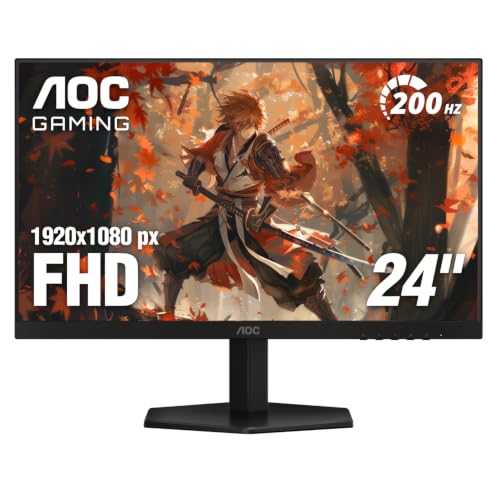
Best Budget: AOC 24G42HE
Specs
Panel | 23.8 inch IPS, 1920 x 1080 |
Refresh rate | 200 Hz |
Response time | 1 ms GtG (0.3 ms MPRT listed) |
Inputs | HDMI and DisplayPort |
USB-C | None |
Sync | G-Sync Compatible, Adaptive-Sync |
Warranty | 3 years |
Panel
23.8 inch IPS, 1920 x 1080
Refresh rate
200 Hz
Response time
1 ms GtG (0.3 ms MPRT listed)
Inputs
HDMI and DisplayPort
USB-C
None
Sync
G-Sync Compatible, Adaptive-Sync
Warranty
3 years
What it does well
The AOC 24G42HE is a 23.8 inch 1080p IPS panel at 200 Hz with 1 ms GtG, and it is G-Sync Compatible certified. For an RTX 5050 or 5060 laptop that spends most nights in Valorant, CS2 or Fortnite, 1080p at 200 Hz is where those frames show up.
It takes the least desk space of the five, and AOC backs it with a 3 year warranty. HDMI and DisplayPort cover the outputs most gaming laptops have, and on most models those outputs run straight from the dedicated GPU.
What you give up
There is no USB-C input, so it is a two-cable setup: video plus the laptop charger. At 24 inches, 1080p looks soft for documents and browsing next to any of the 1440p picks.
Our sources did not confirm the HDMI and DisplayPort versions, so plan on DisplayPort for the full 200 Hz if your laptop has it. Check the model on the listing too: the C24G42E is a curved VA monitor with a nearly identical name.
Who it's for
Buy it if you are on an RTX 5050 or 5060 laptop, play esports titles at 1080p and want the cheapest real step up from a 60 Hz screen. Our 1080p 240 Hz monitor guide has faster options.
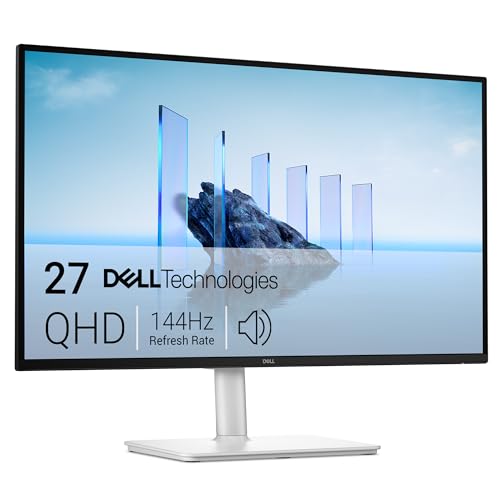
Editor's Pick: Dell 27 Plus QHD USB-C S2725DC
Specs
Panel | 27 inch IPS, 2560 x 1440 |
Refresh rate | 144 Hz |
Response time | 1 ms |
USB-C | DisplayPort 1.4 Alt Mode, 65 W power delivery |
Other inputs | HDMI, DisplayPort 1.4 |
Extras | 2x 3 W speakers, 15 W USB-C downstream port |
Stand | Height, tilt, pivot and swivel |
Panel
27 inch IPS, 2560 x 1440
Refresh rate
144 Hz
Response time
1 ms
USB-C
DisplayPort 1.4 Alt Mode, 65 W power delivery
Other inputs
HDMI, DisplayPort 1.4
Extras
2x 3 W speakers, 15 W USB-C downstream port
Stand
Height, tilt, pivot and swivel
What it does well
The Dell S2725DC is the closest thing to a one-cable desk here. Its USB-C input carries DisplayPort 1.4 Alt Mode video and up to 65 W of power, and Vivid Repairs confirms 144 Hz works over USB-C as well as DisplayPort. A second USB-C port supplies 15 W for a phone or headset.
The stand adjusts for height, tilt, pivot and swivel, and two 3 W speakers cover calls. TechRadar calls it close to ideal in most office settings, which matters when the same desk is your work setup during the day.
What you give up
144 Hz is the lowest refresh of the 1440p picks, and the listing names FreeSync only, with no G-Sync certification. TechRadar also says it is not the screen for color-critical creative work.
65 W is the honest catch. It keeps a slim laptop charged through work and light play, but expect a gaming load to draw more than the port supplies, so long sessions still need the laptop's own charger. The near-identical S2725DSM drops USB-C entirely, so check the model before you order.
Who it's for
Buy it if you own a thin gaming laptop that charges over USB-C, like many 14 inch gaming laptops, and want one cable for work days with the main charger saved for long gaming sessions.
Bottom line
If you own an RTX 5060 to 5070 Ti laptop, buy the ASUS ROG Strix XG27ACS. If you share the desk with a work laptop, buy the Gigabyte M27Q2 for its KVM. If you have an RTX 5080 or 5090 laptop and play fast shooters, buy the MSI MPG 271QRX QD-OLED. If you are on an RTX 5050 or 5060 and play esports at 1080p, buy the AOC 24G42HE. If one cable matters more than refresh, buy the Dell S2725DC and keep the laptop charger close for long sessions. Raising the laptop on a cooling pad keeps its fans fed while it drives the big screen.
FAQ
Can you connect a gaming laptop to an external monitor and play on it?
Yes. Every gaming laptop has at least one video output, usually HDMI and often a USB-C port with DisplayPort Alt Mode or Thunderbolt. Plug the monitor in, set it as the main display in Windows and pick the refresh rate in Display settings, since Windows does not always choose the highest one. Many owners close the lid and use an external keyboard and mouse; set the lid action in power settings so closing it does not put the laptop to sleep. A 1440p monitor like the ASUS ROG Strix XG27ACS suits most RTX 5060 to 5070 Ti laptops.
Does an external monitor make a gaming laptop run faster or slower?
The monitor itself does not change how fast the GPU renders. Resolution does: moving from a 1080p laptop screen to a 1440p monitor asks the GPU for more pixels, so frame rates drop unless you turn on upscaling. The connection matters too. HDMI and DisplayPort outputs on most gaming laptops are wired to the dedicated GPU, so they skip the trip through the integrated GPU that the built-in screen can take on laptops without a MUX switch. Some owners see slightly higher frame rates on an external screen for that reason.
Which port should I use to connect a gaming laptop to a monitor: HDMI, DisplayPort or USB-C?
Use the port that is wired to the dedicated GPU and supports the monitor's full refresh rate. On most gaming laptops that is HDMI 2.1 or a USB-C or Thunderbolt port with DisplayPort Alt Mode. HDMI 2.0 tops out below 200 Hz at 1440p, so a fast 1440p monitor wants DisplayPort over USB-C or HDMI 2.1. Your laptop's spec sheet or manual lists which USB-C ports output video. If the laptop has both, USB-C saves a cable on monitors with a hub or KVM, like the Gigabyte M27Q2.
Can a USB-C monitor charge a gaming laptop?
Some can, but not at a gaming load. USB-C monitors supply anywhere from a few watts to about 90 W: 7.5 W on the ASUS XG27ACS, 18 W on the Gigabyte M27Q2, 65 W on the Dell S2725DC and 90 W on the MSI MPG 271QRX. Gaming laptops commonly ship with 180 W to 400 W adapters, draw far more than 90 W while gaming, and many only charge through a barrel plug. Treat monitor charging as a top-up during work and keep the main charger plugged in for games.
Do I need a MUX switch to game on an external monitor?
No. A MUX switch decides whether the laptop's built-in screen is driven by the dedicated GPU directly or through the integrated GPU. HDMI and DisplayPort outputs on most gaming laptops already connect straight to the dedicated GPU, so an external monitor gets the direct path with or without a MUX. A USB-C port can be the exception, since some are wired to the integrated GPU. If you mostly game on an external monitor, the MUX switch is a much smaller factor in which laptop to buy.
Is 1440p or 1080p better for a gaming laptop's external monitor?
Match it to the laptop's GPU. RTX 5050 and 5060 laptops are most comfortable at 1080p, where a 200 Hz panel like the AOC 24G42HE gets the most out of them in esports titles. RTX 5060 to 5070 Ti laptops are the 1440p tier, and a 27 inch 1440p panel at 144 to 200 Hz looks far sharper for games and work. RTX 5080 and 5090 laptops can drive 1440p at very high refresh, which is where the 360 Hz MSI MPG 271QRX earns its place. At 27 inches, 1440p is the better everyday screen.
Related Articles

Best Portable Monitor for Gaming 2026: 5 Picks, 144-300Hz
The best portable monitor for gaming in 2026, matched to your Steam Deck, ROG Ally, laptop or console. 5 picks from 144Hz to 300Hz, with honest USB-C limits.
Sep 4, 2026

Best Gaming Laptop Docking Stations 2026: 5 That Hit 165Hz
The best docking stations for gaming laptops in 2026. Which docks really drive 1440p 165Hz or 4K 120Hz, which choke on DisplayLink, and what 100W will not do.
Aug 30, 2026

5 Best 1440p Gaming Monitors Under $300 (2026): Mini-LED HDR
The best 1440p gaming monitors under $300 for 2026: a 336-zone Mini-LED HDR upset, 180 to 210Hz IPS value picks, and the one tradeoff each panel asks of you.
Oct 2, 2026

Best Cooling Pads for Gaming Laptops (2026 Buyer Guide)
The best cooling pad for gaming laptops hinges on one fork: sealed-chamber turbofans that stop throttling, or quiet open-fan pads. Five picks by size.
Jul 15, 2026

Gaming Laptop vs Desktop 2026: Value Math and 4 Picks
Gaming laptop vs desktop in 2026: desktops deliver about 30-40% more frames per dollar, laptops deliver portability. See which fits you, plus 4 picks.
Sep 2, 2026