Affiliate Disclosure: As an Amazon Associate we earn from qualifying purchases. Some links may earn us a commission at no cost to you.

Best Monitors for the RX 9060 XT (2026): 5 Picks by Tier
The RX 9060 XT 16GB is a 1440p card, and that one fact settles most of the monitor question before you read a single panel spec. Reviewer testing puts it in the low-to-mid 60s at 1440p native in heavy AAA titles and up past 100 in lighter engines. That output maps onto one thing: a 27-inch 1440p screen running 180 Hz with variable refresh.
So the short version is buy 1440p, not 1080p and not 4K, and start at 180 Hz. The five picks below are ordered by what each tier of panel changes for this specific card.
Our top pick: ASUS TUF Gaming VG27AQ3A
The ASUS TUF Gaming VG27AQ3A sits exactly on the refresh tier this card earns. 27 inches, 1440p, 180 Hz Fast IPS, and adaptive sync that covers the entire frame band the 9060 XT produces.

Quick picks
Pick | Monitor | Best for | Buy |
|---|---|---|---|
Best Overall | 1440p 180 Hz on a mixed library | ||
Best Value | The same tier at a lower entry point | ||
Best Premium | Contrast instead of frame count | ||
Best Budget | 200 Hz on the tightest budget | ||
Editor's Pick | HDR that visibly works |
Best Overall
- Monitor
- Best for
1440p 180 Hz on a mixed library
- Buy
Best Value
- Monitor
- Best for
The same tier at a lower entry point
- Buy
Best Premium
- Monitor
- Best for
Contrast instead of frame count
- Buy
Best Budget
- Monitor
- Best for
200 Hz on the tightest budget
- Buy
Editor's Pick
- Monitor
- Best for
HDR that visibly works
- Buy
Specs at a glance
Monitor | Panel | Refresh | Adaptive sync | Standout |
|---|---|---|---|---|
27-inch Fast IPS | 180 Hz | FreeSync Premium, G-SYNC Compatible | The frame-matched default | |
27-inch IPS | 180 Hz (200 Hz OC) | FreeSync, G-SYNC Compatible | Full pivot stand | |
27-inch QD-OLED | 240 Hz | FreeSync Premium Pro | True Black 400 HDR | |
27-inch SS IPS | 200 Hz (210 Hz OC) | FreeSync Premium, G-SYNC Compatible | USB Type-C KVM | |
27-inch VA, Mini-LED | 180 Hz | FreeSync Premium Pro | 336-zone local dimming |
- Panel
27-inch Fast IPS
- Refresh
180 Hz
- Adaptive sync
FreeSync Premium, G-SYNC Compatible
- Standout
The frame-matched default
- Panel
27-inch IPS
- Refresh
180 Hz (200 Hz OC)
- Adaptive sync
FreeSync, G-SYNC Compatible
- Standout
Full pivot stand
- Panel
27-inch QD-OLED
- Refresh
240 Hz
- Adaptive sync
FreeSync Premium Pro
- Standout
True Black 400 HDR
- Panel
27-inch SS IPS
- Refresh
200 Hz (210 Hz OC)
- Adaptive sync
FreeSync Premium, G-SYNC Compatible
- Standout
USB Type-C KVM
- Panel
27-inch VA, Mini-LED
- Refresh
180 Hz
- Adaptive sync
FreeSync Premium Pro
- Standout
336-zone local dimming
How we picked: the RX 9060 XT's real 1440p frame ceiling
Average frame rates measured at 1440p with upscaling off, across a mixed single-player suite.
- 106 FPS
- 85 FPS
- 65 FPS
- 64 FPS
- 63 FPS
- 62 FPS
- 49 FPS
Read that as a band rather than an average. Heavy single-player titles at 1440p native sit in the low 60s. Lighter engines clear 85 and reach past 100. Competitive titles run well above both. A 180 Hz panel with variable refresh covers that entire spread without you changing a setting, which is why nothing in this list stops at 144 Hz.
The 16GB frame buffer is the other half of the argument. Our floor for 1440p is 12GB with 16GB preferred, and this card clears it outright. That is the real gap between the 16GB SKU and the 8GB one, and it is why putting this card behind a 1080p panel wastes the part you paid for. If you are still deciding between GPU tiers, we looked at whether the 9060 XT is enough for 1440p and the wider field of 1440p cards under the same cap separately.
4K is the line we will not cross with this card. The titles that land in the 60s at 1440p native fall under a playable floor at 4K, and getting back to 60 means running FSR in Performance mode in exactly the games where upscaling artifacts show most. Frame generation does not rescue it either. It turns 60 into 120; it never turns 30 into 120.
That leaves panel technology as the only place extra money changes what you see. Refresh above 180 Hz is headroom this GPU reaches mostly in esports titles, while contrast, local dimming and response time improve every frame it already renders. I treat the display as the biggest unforced error in a 2026 build. People finish a serious tower and then stare at a cheap screen for the next four years. Spend the step up on the panel itself, not on a refresh number the card cannot feed.
Best Overall: ASUS TUF Gaming VG27AQ3A
Specs
Panel | 27-inch Fast IPS |
Resolution | 2560 x 1440 |
Refresh rate | 180 Hz |
Response | 1 ms GTG |
Adaptive sync | FreeSync Premium, G-SYNC Compatible |
Color | 130% sRGB |
Inputs | DisplayPort 1.2, 2x HDMI 2.0 |
Panel
27-inch Fast IPS
Resolution
2560 x 1440
Refresh rate
180 Hz
Response
1 ms GTG
Adaptive sync
FreeSync Premium, G-SYNC Compatible
Color
130% sRGB
Inputs
DisplayPort 1.2, 2x HDMI 2.0
What it does well
Fast IPS is the part that matters here. The response is quick enough that motion stays readable without the overshoot artifacts that cheaper panels hide behind a 1 ms number, and the 180 Hz ceiling sits above everything the 9060 XT produces at 1440p rather than beneath it.
Both adaptive sync certifications are present, so the 60 to 110 fps band this card lives in stays tear-free whichever driver stack you end up on. Color coverage is 130% sRGB out of the box, the stand tilts, swivels, raises and pivots, and there is a backlight strobing mode for anyone who prefers strobing to variable refresh.
What you give up
HDR is a label on the box. The backlight is edge-lit with no local dimming, so HDR content looks flat rather than bright, and contrast is ordinary IPS, which means dark scenes go grey in a dim room. The built-in speakers exist and that is the kindest thing to say about them.
Who it's for
The default buyer for this card: a mixed library, a 27-inch desk, 1440p high settings, and no appetite for thinking about the panel again for four years.
Best Value: LG UltraGear 27GS75Q-B

Specs
Panel | 27-inch IPS |
Resolution | 2560 x 1440 |
Refresh rate | 180 Hz, 200 Hz overclock |
Response | 1 ms GTG |
Adaptive sync | FreeSync, G-SYNC Compatible |
Stand | Tilt, height, pivot |
Inputs | DisplayPort 1.4, 2x HDMI 2.1 |
Panel
27-inch IPS
Resolution
2560 x 1440
Refresh rate
180 Hz, 200 Hz overclock
Response
1 ms GTG
Adaptive sync
FreeSync, G-SYNC Compatible
Stand
Tilt, height, pivot
Inputs
DisplayPort 1.4, 2x HDMI 2.1
What it does well
LG's UltraGear tuning is the dependable middle of this category. Overdrive is set honestly rather than pushed to win a spec-sheet number, factory color is not oversaturated, and the stand does everything an expensive stand does including pivot to portrait.
The 200 Hz overclock is a real extra rather than a marketing tier, and it lands exactly where a competitive session on this card sits. HDMI 2.1 on both ports also means a console can share the screen without a bandwidth compromise.
What you give up
HDR10 with no local dimming is the same washed-out story as every IPS panel at this price. Color volume is narrower than the ASUS and you will see it if the two sit side by side. There is no USB hub and no KVM, so this is a single-machine screen.
Who it's for
The buyer who wants the top pick's refresh tier with the difference going back into the build, and who cares more about stand ergonomics than color volume.
Best Premium: MSI MAG 271QPX QD-OLED

Specs
Panel | 27-inch QD-OLED |
Resolution | 2560 x 1440 |
Refresh rate | 240 Hz |
Response | 0.03 ms GTG |
HDR | True Black 400 |
Adaptive sync | FreeSync Premium Pro |
Inputs | DisplayPort 1.4, 2x HDMI 2.1 |
Panel
27-inch QD-OLED
Resolution
2560 x 1440
Refresh rate
240 Hz
Response
0.03 ms GTG
HDR
True Black 400
Adaptive sync
FreeSync Premium Pro
Inputs
DisplayPort 1.4, 2x HDMI 2.1
What it does well
This is the one upgrade in the set that does not depend on the GPU pushing more frames. Per-pixel emissive contrast changes every frame the 9060 XT already delivers, and True Black 400 is the first HDR mode here that earns the label rather than wearing it.
Motion clarity at 0.03 ms is a different category from any IPS panel in this article. Nothing smears, nothing ghosts, and the 240 Hz ceiling gives the card room to grow into if a future upgrade lands in the same build.
What you give up
The 9060 XT will not feed 240 Hz natively in demanding titles, so a real share of that refresh headroom is future-proofing rather than something you get today. Text fringing from the triangular subpixel layout shows on desktop work, which matters if this doubles as a work screen.
Burn-in is managed by pixel shifting and refresh cycles, not eliminated. Static HUDs, taskbars and stream overlays want attention over a multi-year ownership window, and the panel warranty is the thing to read before buying.
Who it's for
The buyer who already owns the card and is spending on the display instead of the GPU, plays single-player games in a dim room, and would take contrast over frames every time.
Best Budget: Gigabyte M27Q2

Specs
Panel | 27-inch SS IPS |
Resolution | 2560 x 1440 |
Refresh rate | 200 Hz, 210 Hz overclock |
Response | 1 ms GTG |
Adaptive sync | FreeSync Premium, G-SYNC Compatible |
Extras | USB Type-C KVM |
Inputs | DisplayPort 1.4, 2x HDMI 2.0, USB-C |
Panel
27-inch SS IPS
Resolution
2560 x 1440
Refresh rate
200 Hz, 210 Hz overclock
Response
1 ms GTG
Adaptive sync
FreeSync Premium, G-SYNC Compatible
Extras
USB Type-C KVM
Inputs
DisplayPort 1.4, 2x HDMI 2.0, USB-C
What it does well
The usual budget compromise is dropping to 144 Hz or giving up adaptive sync certification. This panel does neither. It runs 200 Hz on a Super Speed IPS layer with both FreeSync Premium and G-SYNC Compatible certification, which puts it above the tier its price suggests.
The Type-C KVM is the genuine surprise. One cable carries video, USB and power to a work laptop, so the screen has a second life on days the tower is off. If you are shopping this end of the range more broadly, our budget 1440p picks under the cap cover the wider field.
What you give up
Factory color is the loosest here and benefits from a calibration profile before you trust it for anything but games. HDR is not worth switching on. Build quality and stand feel sit a tier below the LG and the ASUS, and the stand tilts and raises but will not pivot.
Who it's for
The buyer who put every available dollar into the card itself and needs the screen to stop being the limiting factor, or anyone docking a work laptop to the same desk.
Editor's Pick: AOC Gaming Q27G3XMN
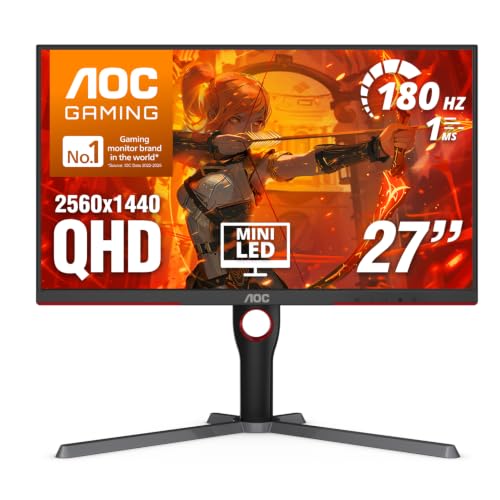
Specs
Panel | 27-inch VA, Mini-LED backlight |
Resolution | 2560 x 1440 |
Refresh rate | 180 Hz |
Local dimming | 336 zones |
HDR | VESA DisplayHDR 1000 |
Adaptive sync | FreeSync Premium Pro |
Inputs | DisplayPort 1.4, 2x HDMI 2.0 |
Panel
27-inch VA, Mini-LED backlight
Resolution
2560 x 1440
Refresh rate
180 Hz
Local dimming
336 zones
HDR
VESA DisplayHDR 1000
Adaptive sync
FreeSync Premium Pro
Inputs
DisplayPort 1.4, 2x HDMI 2.0
What it does well
336 dimming zones behind a VA layer, with a 1000-nit peak, make HDR a visible change rather than a menu option you switch on once. Almost nothing else near this price does that, and the VA panel keeps native contrast high even with dimming disabled.
It also sits on the same 180 Hz tier as the top pick, so nothing about the pairing maths changes. You are buying image quality, not asking the card for headroom it does not have.
What you give up
VA response trails Fast IPS, and dark-transition smearing is visible in fast motion. Competitive players will notice it and should take the ASUS instead. Zone-level blooming shows around bright objects on dark backgrounds, and off-axis color shift is worse than any IPS panel here.
Reports suggest the local dimming algorithm runs aggressive on default settings, and buyers have flagged that HDR mode locks several picture controls until you leave it.
Who it's for
The single-player and cinematic-library buyer who wants HDR that holds up in real content, is content at 180 Hz, and is not chasing esports response times.
Bottom line
If you want the pairing settled in one purchase, buy the ASUS TUF Gaming VG27AQ3A. If the budget is tighter, the LG UltraGear 27GS75Q-B is the same refresh tier for less and the Gigabyte M27Q2 is the floor that still clears it. If you play single-player in a dim room, take the MSI MAG 271QPX QD-OLED and accept that some of its 240 Hz is for a future card. If HDR is the thing you want and esports is not, the AOC Gaming Q27G3XMN is the one. Still choosing the card itself? We put it head to head against the RTX 5060, and the general framework lives in our guide to matching a GPU to a display.
FAQ
Is the RX 9060 XT a 1440p card, or should you stay at 1080p?
It is a 1440p card, and the 16GB frame buffer is the reason. Reviewer numbers put it in the low-to-mid 60s at 1440p native in heavy AAA titles and above 85 in lighter engines, which is a comfortable high-settings experience on a variable-refresh panel. Dropping to 1080p buys frames you cannot see on a 180 Hz screen while throwing away the sharpness the card was sized to deliver. Stay at 1440p.
How many Hz do you actually need for an RX 9060 XT?
180 Hz is the frame-matched answer. The card's 1440p output spans roughly 50 to 110 fps in single-player titles and runs far higher in competitive games, and a 180 Hz panel with FreeSync covers that whole spread without you touching a setting. A 144 Hz panel clips the top of the competitive range for no saving worth having. Above 180 Hz you are buying headroom this GPU only reaches in esports titles.
Can the RX 9060 XT drive a 4K monitor?
It can output 4K, but it is not a 4K gaming card. Titles that land in the 60s at 1440p native fall well under a playable floor at 4K, and clawing back to 60 means running FSR in Performance mode in exactly the games that show upscaling artifacts most. Desktop work and older or lighter titles at 4K are fine. New AAA releases at 4K are not what this card is for.
Does the RX 9060 XT work with G-SYNC Compatible monitors, or only FreeSync?
Both, because they are the same underlying standard. G-SYNC Compatible is NVIDIA's certification applied to adaptive-sync panels, and any monitor carrying it also runs variable refresh from a Radeon card over DisplayPort or HDMI. Four of the five picks here hold both certifications. What matters is the variable-refresh range printed in the specifications, not which vendor logo is on the box.
Is a 240Hz monitor wasted on an RX 9060 XT?
It is wasted if you buy it for the refresh number alone, because this card rarely feeds 240 fps at 1440p outside competitive titles. It is not wasted if the 240 Hz panel is also the panel technology upgrade, which is why the QD-OLED pick is here. Contrast and response time improve every frame the card already renders. Frame generation does not close the gap either: it turns 60 into 120, never 30 into 120.
Does the RX 9060 XT 16GB have enough VRAM for 1440p in 2026?
Yes, and comfortably. Our floor for 1440p is 12GB with 16GB preferred, so the 16GB variant clears it with room for texture packs and ray tracing where the card can afford it. This is the single clearest difference between the 16GB and 8GB versions of the same card. If you are choosing between them, the 8GB SKU is the one to avoid at 1440p.
Related Articles

Best GPUs Under $500 for 1440p Gaming (2026): 5 Picks by VRAM
Five sub-$500 GPUs for 1440p, segmented by monitor pairing and VRAM ceiling. Honest street pricing, the 8GB-versus-16GB call, and which card matches your library.
May 19, 2026

RX 9060 XT vs 9070 (2026): Is 16GB Enough for 1440p?
Is the RX 9060 XT enough for 1440p gaming? It clears 1080p and 1440p high settings; the RX 9070 only pays off at 1440p ultra. Benchmarks and buyable picks.
Sep 10, 2026

5 Best 1440p Gaming Monitors Under $300 (2026): Mini-LED HDR
The best 1440p gaming monitors under $300 for 2026: a 336-zone Mini-LED HDR upset, 180 to 210Hz IPS value picks, and the one tradeoff each panel asks of you.
Oct 2, 2026

RTX 5060 vs RX 9060 XT (2026): 8GB vs 16GB Decides It
RTX 5060 vs RX 9060 XT: the 8GB card is the trap. AMD wins 1080p frames and 16GB of VRAM, NVIDIA wins DLSS 4 and ray tracing. Here is which one to buy.
Sep 8, 2026

How to Choose a GPU (and a Monitor That Matches)
A buyer's framework for picking a GPU and the monitor that pairs with it. Start with the panel and work the card back.
May 17, 2026